
Access |
 |
by Eddie Mijares |
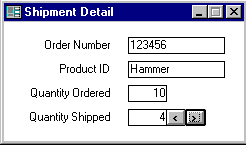
Many Windows users would prefer to press buttons to increase or decrease a value rather than key in a value. The most typical example of spin buttons is the number of copies to print on the Print Dialog form. Beside the copies text box are two small buttons with up and down arrows on them. If you press the up button the number of copies is incremented and if you press the down button then the number of copies is decremented.
Access provides two alternatives for creating spin buttons. The first alternative is to use an OLE (Object Linking and Embedding) control which provides two buttons and a variety of properties for you to set. However, OLE controls require that you distribute the control along with the Access MDB file. In addition, OLE controls require a great deal of memory to function responsively. If your target or destination computer has less than 16 megs of memory then OLE controls should be avoided unless sluggish response times are acceptable.
Another spin button alternative involves using two command buttons and some code. While this is a less elegant approach than an OLE control, it is easier to distribute since you do not have to include the OLE control. You can either use up and down arrow bitmaps on the command buttons or you can use a combination of the "<" and ">" characters or the "+" and "-" characters. If you don't have any arrow bitmaps you can use Paint or Paintbrush to create some.
In order for these buttons to work while they are held down, you must set the "Auto Repeat" property to Yes. This will allow continuous incrementing and decrementing of the text box values. If you do not set the Auto Repeat property to Yes then your user will have to click on the buttons for each increment and decrement to occur.
We are now ready to place the code behind the up and down buttons. The necessary code is quite simple. First, we need to determine the current value of the text box. If the text box has no value then an error will occur. We can prevent this error by using the IsNull function to set the value to zero if no value exists. We then either increment or decrement the value and place the value back in the text box. However, when we run the code we don't see the value incrementing and decrementing. This is because the system has not had any time to refresh the text box. If we use the DoEvents function then the operating system will be given time to update the screen.
The following code increments the text box value:
Sub cmdUp_Click ()
Dim qty%
If IsNull([Quantity Shipped]) Then [Quantity Shipped] = 0
qty% = Val([Quantity Shipped])
qty% = qty% + 1
[Quantity Shipped] = CStr(qty%)
DoEvents
End Sub
The following code decrements the text box value:
Sub CmdDown_Click ()
Dim qty%
If IsNull([Quantity Shipped]) Then [Quantity Shipped] = 0
qty% = Val([Quantity Shipped])
qty% = qty% - 1
[Quantity Shipped] = CStr(qty%)
DoEvents
End Sub
This technique does not have to be limited to integer values. We can easily modify this code to accommodate fractions, minutes, hours, days, weeks, months, years or any value we wish.
Spin buttons provide an intuitive and friendly user interface. If used properly they can add significant value to your applications.
Eddie Mijares, a HAL-PC member, is president of Major Systems Corp., engaged in MS Access and VB consulting.
E-mail me at webmaster@hal-pc.org with any comments you have and tell me what you want to see here.
Back to the User Journal Home Page